Monday, June 29, 2009

Warming Up A Picture

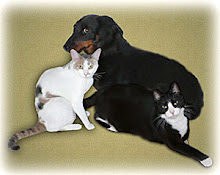
Some pictures could use a warmer look. It usually is a matter of taste as to how much warmer they should look. Consider the picture below. I will explain how to make this picture look warmer and consequently more appealing in the video tutorial which follows.

BEFORE:


VIDEO TUTORIAL:
video


AFTER:


As always, you are welcome to download the "BEFORE" picture and practice with it.

Sunday, June 21, 2009

Fixing a White Sky with Picasa

BEFORE:


Often you take a picture on a bright sunny day and end up with a photo that has what I call a blown-out sky. This is a result of the camera's electronics. These skies can be fixed by using the "Graduated Tint" feature in the "Effects" section of the Picasa editor.


VIEW TUTORIAL:
video


AFTER:


Of course, you can download the "BEFORE:" image yourself and fix it for practice. I have also inlcuded the picture below for another image to practice with.


I mentioned in a previous blog that there are a number of photo fixes that need more sophisticated image editors. I quite often use Photoshop Elements in special cases and in particular Photoshop Elements 5. I took a picture in Venice during a beautiful sunny day and the image later proved to have a blown-out sky. See the following demo at: http://www.fotofixin.com/photo_enhancements.html. Roll your mouse button over the picture to see a before and after look.

Tuesday, June 9, 2009

Fixing Over-saturated Photos

One of the problems with taking pictures in a low-light environment is that the resulting photos often have color saturations problems. For example,

BEFORE:


This problem has to do with the camera and its light-sensing electronics. Furthermore, you usually are too far from the subject for your camera flash to help. This is an easy edit to make with Picasa 3.

VIDEO TUTORIAL:
video

AFTER:

Wednesday, June 3, 2009

Fixing a Color Cast

One easy fix in Picasa 3 is correcting a color cast. First you have to identify that a photo's colors don't look quite right. The easiest place to see a color problem is in the area of a person's skin. It might look a little green or blue, etc. For example, let's look at the following image where the color of the bath towel is definitely off:
BEFORE:


Fixing this color cast is easy to do with Picasa 3 as you will see in the following video:


VIDEO TUTORIAL:

video

AFTER:


I have included three photos for you to practice on. Simply right-click on each image in turn, and left-click on "Save Image As..." or "Save Picture As...". When presented with a dialog box, choose to save the image to your Desktop so that you will be able to find this downloaded photo later. The image will be automatically imported to your Picasa 3 software in the "Recently Updated" folder where you can proceed to practice with the "Neutral Color Picker" tool in the manner described in the video tutorial. Remember to double click on the thumbnail to bring the thumbnail into edit mode. Good luck and have fun!!!!

If you still don't have Picasa 3 installed on your computer, please go to http://www.geeksontour.com/showme/picasa/pic302_install.cfm
for installation instructions.